
Have you ever wondered if that annoying notification about a new software version is really worth interrupting your flying schedule? Many pilots dismiss these alerts as unnecessary hassles, but what if I told you they could be the difference between a flawless flight and a costly accident?
I’ve created this comprehensive guide because I believe every aircraft owner should understand the critical role that internal software plays. This essential programming controls everything from flight stabilisation to battery management, acting as your machine’s nervous system.
I know the frustration when update notifications pop up right before a planned shoot. However, these improvements exist to protect both your equipment and the people around it. Keeping your aircraft’s systems current ensures optimal performance and reliability throughout its operational life.
In this guide, I’ll walk you through the two primary methods: updating through the manufacturer’s mobile application and using computer software like DJI Assistant 2. You’ll learn preparation steps, detailed procedures, troubleshooting tips, and best practices for maintaining your equipment’s digital health.
While I’ll focus primarily on DJI models due to their market dominance, most principles apply across different manufacturers. My goal is simple: to help pilots of all experience levels approach system maintenance with confidence rather than apprehension.
Key Takeaways
- Firmware acts as your aircraft’s essential control system
- Regular maintenance ensures optimal performance and safety
- Updates protect both your equipment and surrounding people
- Two main methods exist: mobile app and computer software
- Proper preparation prevents most common issues
- These principles apply across most manufacturers’ models
- Confidence comes from understanding the update process
Understanding the Importance of Drone Firmware Updates
While it’s tempting to dismiss update prompts as inconvenient, these improvements serve as vital protection for your equipment. The internal software operates at a much deeper level than your mobile app, controlling everything from stabilisation systems to power management.
Enhancing Performance and Safety
Manufacturers regularly identify and fix issues in flight control algorithms. Left unaddressed, these could lead to erratic behaviour or even complete system failure. I’ve seen how crucial these fixes can be.
Take the DJI Spark situation as an example. Some units experienced mid-air crashes due to battery connection problems. The subsequent firmware update introduced monitoring that would automatically return the aircraft to base if a fault was detected.
These improvements often extend to battery management, preventing unexpected power loss and protecting your investment. They can also refine control algorithms for smoother operation and better GPS accuracy.
Protecting Your Drone and Reputation
Arriving at a client location only to discover your equipment needs an immediate update creates embarrassment and appears unprofessional. Regular maintenance prevents these awkward situations.
Some manufacturers include updated no-fly zone databases in their releases. This helps you avoid restricted airspace around airports and government facilities, potentially saving you from significant legal trouble.
Whilst these updates might seem like interruptions, they’re actually safeguarding your ability to operate commercially and protecting your valuable equipment.
Preparing Your Drone for a Firmware Update
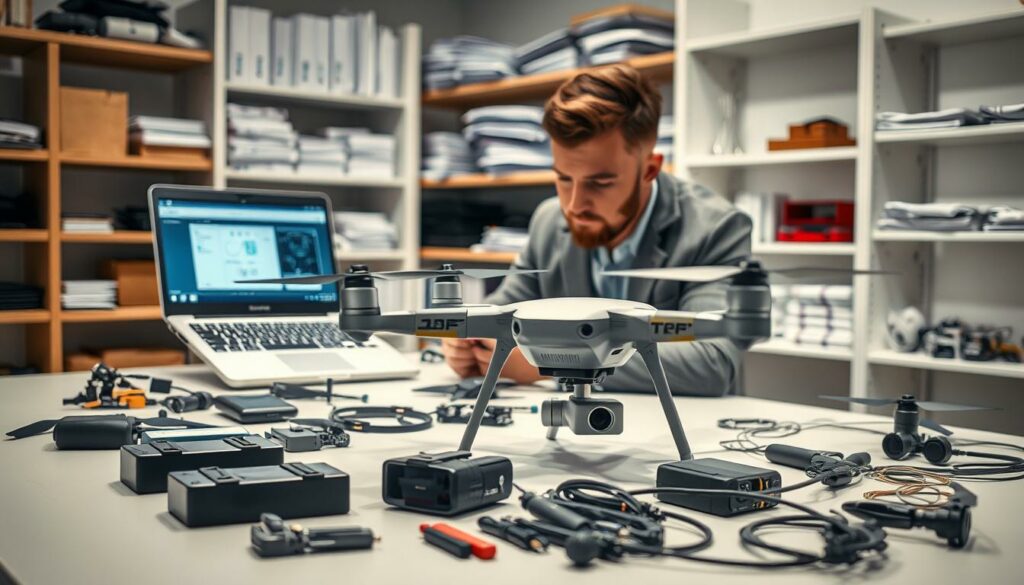
Before diving into the update procedure, taking a few moments to prepare can save you from headaches later. I’ve found that proper setup makes the entire process smoother and more reliable.
Checking Battery Levels and Connectivity
Your aircraft needs at least 40% battery charge to safely complete the process. The remote controller requires a minimum of 20% power. I always check these levels first.
If power fails during installation, you could end up with corrupted software. This might render your equipment inoperable, potentially requiring expensive repairs.
Connect your mobile device to a reliable power source and ensure stable internet connectivity. Firmware files can be quite large, so interrupted downloads cause problems.
Verifying Model and Firmware Compatibility
Always verify your exact drone model before downloading any software. Installing firmware meant for a different model can permanently damage your aircraft.
Check the label on the aircraft body, the original packaging, or within the manufacturer’s app settings. Different models require specific versions of updating software like DJI Assistant 2.
I suggest keeping a pre-flight checklist that includes a firmware verification. This makes it a routine part of your preparation rather than an afterthought.
How to Update Using the Drone App
Many pilots find the manufacturer’s mobile application to be the most straightforward way to handle system maintenance. For most DJI models, this means using the DJI Fly app, though some older aircraft utilise DJI GO 4 instead.
Connecting Your Drone and Remote Controller
Begin by powering on both your aircraft and the remote controller. Launch the mobile application and wait for the devices to establish a connection, which typically takes 30-60 seconds.
When the app detects available improvements, you’ll see a notification with details about what fixes or enhancements the new version contains. This is your cue that maintenance is needed.
Following On-screen Prompts in the DJI Fly App
Tap the Update button when prompted, ensuring your mobile device stays connected to the internet throughout the download process. The file size determines how long this takes.
Once downloaded, tap Update again to begin installation. Never power off your equipment, disconnect the controller, or exit the app during this critical phase. Interruption could cause serious software corruption.
You’ll see a progress bar, and your devices may beep or flash lights during the 5-15 minute process. Automatic restarts are completely normal and part of the installation.
Completion is signalled when the remote controller remains powered on while the aircraft turns off automatically. This indicates successful installation and you’re ready for your next flight.
Drone Firmware Updates Methods: Update via DJI Assistant 2
For those times when wireless updates fail, the direct computer connection method offers a reliable alternative. This approach becomes essential when you’re troubleshooting app-related issues or working in areas with poor mobile connectivity.
Downloading and Installing the Correct Software
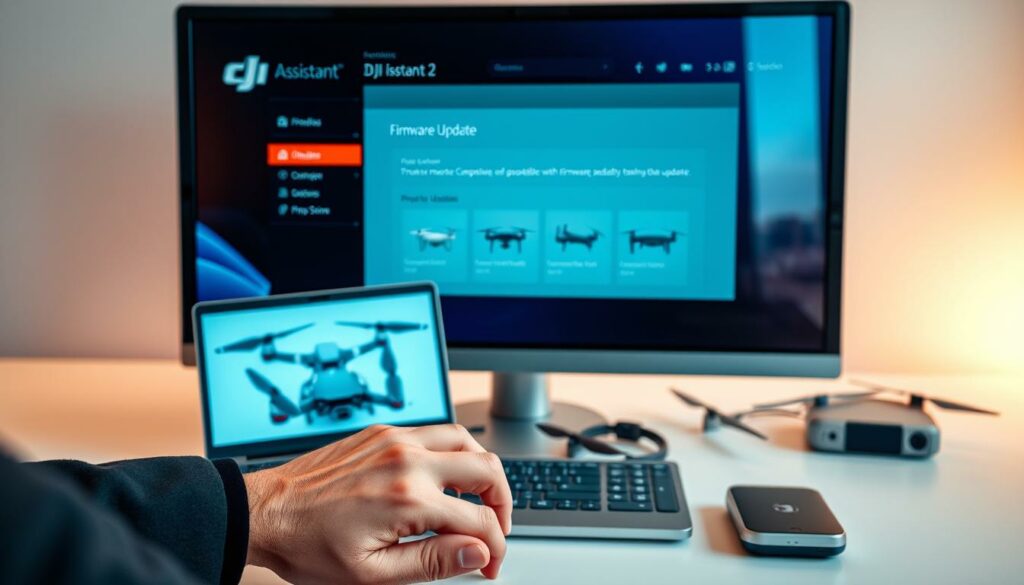
Your first step involves visiting DJI’s official support website. Locate your specific aircraft model to find the appropriate DJI Assistant 2 version. Different models require different software versions.
Download the application compatible with your computer’s operating system. The installation process is straightforward—just follow the on-screen prompts. Always verify you have the correct version for your equipment before proceeding.
Connecting Your Drone to a Computer
Power on your aircraft without turning on the remote controller. Locate the USB port, typically found on the side of the body. Connect it to your computer using a suitable cable.
Launch DJI Assistant 2 and log in with your DJI account credentials. Your connected device should appear under “CONNECTED DEVICES”. Click on it to access the current software information.
The interface will display available improvements. Click “UPGRADE” and monitor the progress bar. After completion, your equipment will automatically restart. Wait for this process to finish before disconnecting.
| Update Method | Best For | Connection Type | Required Equipment |
|---|---|---|---|
| Mobile App | Regular maintenance | Wireless | Drone, controller, mobile device |
| DJI Assistant 2 | Troubleshooting | USB cable | Drone, computer, USB cable |
| Mobile App | Quick updates | Wi-Fi/Bluetooth | Full flight kit |
| DJI Assistant 2 | Advanced operations | Direct connection | Computer setup |
Troubleshooting and Best Practices for Update Firmware Procedures
What happens when your equipment’s digital refresh hits a snag? I’ve faced my share of frustrating moments. Even with perfect preparation, technical issues can still pop up. Knowing how to handle them makes all the difference.
Handling Common Update Issues
Failed downloads often stem from poor internet connectivity. If this happens, try switching between Wi-Fi and mobile data. Sometimes one connection type works better than the other.
Frozen progress bars can be nerve-wracking. I recommend waiting at least 20 minutes before taking action. Some stages appear stalled but are actually processing in the background.
If an update firmware procedure fails completely, restart both your aircraft and controller. Ensure batteries have adequate charge. Verify you’re using the correct software version before trying again.
When to Contact Support for Assistance
After two failed attempts using different methods, it’s time to seek support. The same applies if you see specific error codes or unusual behaviour following an update.
Manufacturer support teams have access to diagnostic tools we don’t. Reaching out promptly can prevent minor issues from becoming major problems.
I make checking for improvements part of my daily pre-flight routine. This ensures I’m never caught off-guard before a important flight. It’s as essential as checking weather conditions.
Keeping your equipment’s systems current isn’t just about new features—it’s about maintaining safety and protecting your investment.
Conclusion
By now, you should feel much more confident about handling your equipment’s essential software refreshes. This guide has shown that these maintenance tasks are not optional but critical for safe flight operations.
Whether using the mobile app for routine checks or DJI Assistant 2 for troubleshooting, the principles remain the same. Always ensure your battery levels are sufficient and your controller is properly connected before starting.
Remember to never interrupt the process and allow automatic restarts to complete fully. I encourage you to view these update notifications as protective measures rather than interruptions.
Make checking for improvements part of your pre-flight routine. These practices apply across different aircraft brands, not just DJI models.
Armed with this knowledge, you can maintain your drone‘s airworthiness with confidence. Manufacturer support is always available if needed. Thank you for investing time in learning proper procedures—here’s to many safe flights ahead!
FAQ
How often should I check for new software versions for my aircraft?
I make it a habit to check for new releases about once a month. It’s also a good idea to look before a big flying project, as the latest version can include important safety improvements and new features for your model.
What is the safest way to perform an upgrade on my flying device?
In my experience, the safest method is to use the official application, like the DJI Fly app. I always ensure my battery is fully charged and that I have a strong, stable internet connection before I begin the process to avoid any interruptions.
My controller won’t connect during the process. What should I do?
This can be frustrating! First, I try restarting both the remote and the aircraft. If that doesn’t work, I double-check that I’m using the correct cable and that it’s firmly plugged in. For persistent issues, the DJI Assistant 2 software on a computer is a great alternative.
Can an interrupted installation cause problems with my aircraft?
It certainly can, which is why preparation is key. A failed upgrade might leave the system in an unstable state. If this happens, I don’t panic. I try the process again from the beginning. If it continues to fail, that’s when I contact customer support for direct assistance.
Is it necessary to update my remote controller as well?
Absolutely. I always update both the aircraft and the controller when a new version is available. This ensures they communicate perfectly and that all the newest functions work correctly. The app usually guides you through updating both.