
Have you ever wondered why your aerial shots, despite capturing breathtaking views, still lack that professional, film-like quality? It’s a common challenge, but the secret often lies not in the flight itself, but in what happens after you land.
I’m here to guide you through the powerful art of colour grading. This process is the key to transforming flat, raw LOG video into stunning cinematic visuals. It’s what separates amateur clips from compelling stories that captivate an audience.
Whether you’re just starting or looking to refine your skills, this tutorial will demystify the entire workflow. We’ll cover everything from the basics of LOG profiles to advanced techniques used by professionals. My goal is to help you unlock the full potential of your aerial video.
By mastering these methods, you can enhance mood, add realism, and make your perspectives truly stand out. Let’s begin this journey to elevate your visual content.
Key Takeaways
- Colour grading is essential for transforming raw aerial video into a professional, cinematic look.
- Shooting in a LOG profile provides maximum flexibility for the grading process.
- This tutorial covers the complete workflow from capture to final export.
- You will learn the difference between basic colour correction and creative colour grading.
- Proper techniques can make ordinary shots visually compelling and rival professional productions.
- The process enhances the mood, realism, and overall quality of your final video.
Preparing for the Flight: Pre-Production Considerations
The foundation for stunning aerial visuals is laid during the planning phase, not just in post-production. I’ve learned that proper preparation makes the entire process smoother and delivers superior results.
Optimise Camera Settings and Exposure
Before takeoff, I always double-check my camera configurations. Getting the exposure and white balance right from the start saves hours of correction work later. Proper settings ensure you capture maximum detail in both bright skies and shadow areas.
My pre-flight checklist includes verifying that highlights aren’t blown out and shadows retain detail. This careful approach gives me the flexibility I need during the editing phase.
Selecting the Right Time and Weather Conditions
Timing is everything in aerial photography. I prefer early morning or late afternoon flights when the light is soft and flattering. These golden hours create naturally cinematic visuals with beautiful, warm tones.
Weather conditions dramatically affect your final results. While sunny days offer vibrant colours, overcast conditions can be perfect for moody, dramatic effects. Understanding how different conditions influence your visuals is key to planning successful shoots.
By considering these factors beforehand, you’ll capture material that’s much easier to work with during post-production.
Shooting in a Flat Profile for Maximum Detail
Capturing with flat profiles might seem counterintuitive at first, but it’s the professional’s secret to maximum creative control. These profiles appear washed out straight from the camera, yet they contain far more visual information than standard settings.

Benefits of Using LOG and Flat Colour Profiles
When I shoot in D-Log or similar flat profiles, I capture a wider dynamic range. This means I can retain intricate cloud details in bright skies while simultaneously preserving texture in shadowy areas.
The extended bit depth provides superior flexibility during post-production. You’ll notice how much more information is available for adjustments compared to pre-processed material.
Managing ISO and Avoiding Noise
I always pair flat profiles with the lowest possible ISO setting. This combination ensures clean, gradable results without introducing unwanted grain.
Lower ISO values minimise noise while maintaining image quality. This approach gives you cleaner material to work with during the editing phase.
The final results speak for themselves. Flat profile recordings transform into rich, cinematic visuals that standard settings simply cannot match.
Color Grading Drone Footage: Enhancing and Correcting Your Visuals
Achieving a natural and balanced look is the essential first step before any creative styling. This process, often called colour correction, ensures your image has a solid foundation.
I always begin by fixing the white balance. An incorrect balance can make your scenes look unnaturally warm or cool. Using the eyedropper tool on a neutral grey area gives you a perfect starting point.
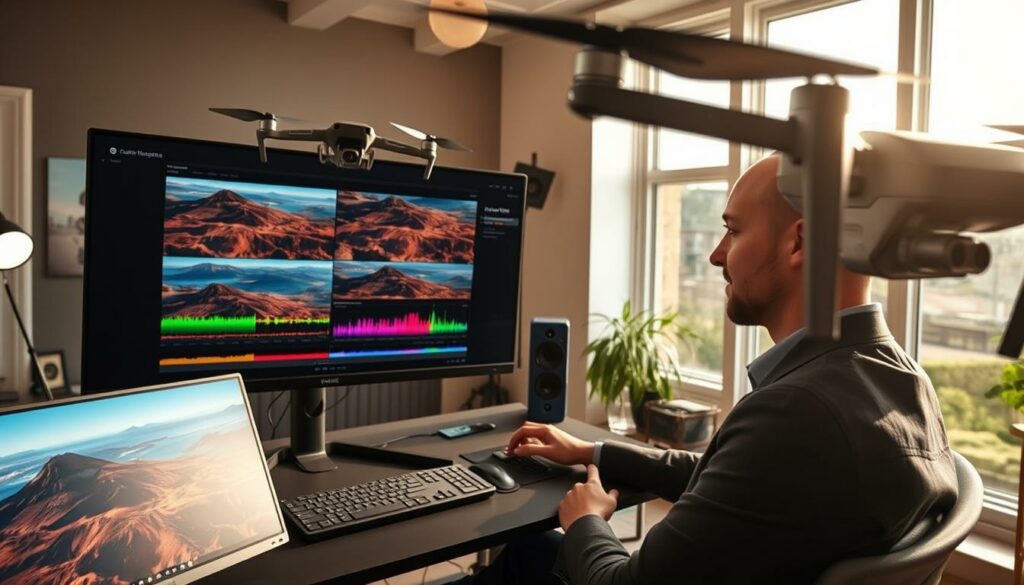
Adjusting White Balance and Exposure
Next, I tackle exposure. The goal is to recover detail. I lower the highlights to tame bright skies and raise the shadows to reveal hidden elements.
Adding contrast is crucial for depth. It makes your visuals pop. I always check the histogram to ensure a full range of tones without clipping.
Boosting Colours with Saturation and Vibrance
Once the foundation is solid, I enhance the colours. It’s vital to know the difference between saturation and vibrance.
Vibrance is my go-to tool. It intelligently boosts muted colours while protecting skin tones. This avoids an unnatural, oversaturated look. I use saturation for fine-tuning afterwards.
| Tool | Primary Effect | Best Use Case | Impact on Skin Tones |
|---|---|---|---|
| Saturation | Boosts all colours equally | Adding overall vividness | Can easily become unnatural |
| Vibrance | Selectively enhances muted colours | Creating a natural, rich look | Protected for a realistic appearance |
For ultimate control, I use curves adjustments. They allow for surgical precision over specific tonal ranges. These core adjustments form the bedrock of any professional colour grade.
Advanced Techniques and Tools for Fine-Tuning
Once you’ve established a solid foundation with basic corrections, it’s time to explore the powerful tools that separate amateur results from professional productions. These advanced options give you surgical control over every aspect of your visual presentation.

Integrating LUTs and Secondary Corrections
I find LUTs (Look-Up Tables) incredibly useful for speeding up my workflow. These pre-designed adjustments can instantly apply professional looks to your material. The key is choosing LUTs specifically designed for aerial characteristics.
For more precise control, I use secondary corrections in software like DaVinci Resolve. This allows me to isolate specific areas using masks. I can enhance skies or water without affecting the entire frame.
| Software | LUT Application Method | Intensity Control | Best For |
|---|---|---|---|
| DaVinci Resolve | Dedicated LUTs panel | Full slider adjustment | Professional grading workflows |
| Adobe Premiere Pro | Lumetri Color effects | Opacity and blending controls | Integrated editing and colour work |
| Final Cut Pro | Custom LUT effect | Strength parameter | Quick Apple ecosystem results |
Utilising Reference Monitors for Consistency
Accurate monitoring is crucial for reliable results. I always work with a calibrated reference display to ensure colours appear correctly. Uncalibrated screens can mislead your adjustments.
I check my final video across multiple devices for consistency. This practice ensures your work looks great everywhere. Saving custom presets helps maintain this consistency across projects.
These advanced techniques will elevate your aerial visuals to professional standards. They provide the precision needed for truly cinematic results.
Conclusion
Your journey into cinematic visuals culminates in this final stage of post-production. By mastering the techniques in this tutorial, you transform raw material into professional results that captivate audiences.
Remember the core process: shooting flat, balancing exposure, and using curves strategically. Avoid excessive adjustments that create unnatural looks. The goal is enhancement, not overpowering your scene’s natural beauty.
Experiment confidently with these tips while maintaining subtlety. For export, choose formats like ProRes to preserve quality across different platforms.
I always review my final work on a large screen at various playback speeds. This helps spot inconsistencies. Taking regular breaks keeps your vision sharp for accurate assessments.
Proper colour correction is an art form that develops with practice. Apply these foundations while developing your unique style. Your videos will achieve that stunning cinematic effect you’re aiming for.
FAQ
What is the main advantage of filming with a flat profile like LOG?
The biggest benefit is that it captures a wider dynamic range. This means my videos retain more detail in the brightest highlights and darkest shadows, giving me much more flexibility when I make adjustments later on.
How can I avoid grainy results in my aerial videos?
I always try to keep my ISO as low as possible. Shooting during the day or in well-lit conditions helps massively. Using a slower shutter speed with an ND filter is my go-to method for controlling exposure without increasing noise.
Why is getting the white balance correct so important?
An accurate white balance ensures the colours in my shot look natural and true to life. If it’s off, the entire image can have an unwanted colour cast, like a blue or orange tint, which is much harder to fix afterwards.
What’s the difference between using saturation and vibrance?
I use saturation to boost the intensity of all colours equally. Vibrance is smarter; it mainly targets the muted tones and tries to protect skin tones from becoming oversaturated, which I find gives a more natural-looking boost.
How do Look-Up Tables (LUTs) help my workflow?
LUTs are fantastic for applying a specific look or style quickly. I often use them as a starting point to get a cinematic feel, and then I make finer adjustments to the contrast and colours to perfectly match my vision.
Should I use a reference monitor for colour correction?
Absolutely. I’ve found that calibrating my monitor is essential for consistency. It ensures the colours and contrast I see while editing are accurate, so my final results look great on other screens and devices.