
Have you ever watched a breathtaking aerial video and wondered how the creator managed to make time itself seem to flow so beautifully? That captivating effect, where the world moves at an impossible speed, is often the result of a specific filming technique.
I’m thrilled to share my comprehensive guide that will transform your YouTube content. This process covers everything from your initial spark of an idea right through to exporting the final masterpiece. Whether you’re just starting out or are an experienced pilot, the steps here are practical and easy to follow.
I’ll walk you through the complete journey, ensuring you grasp both the technical details and the creative choices that make these videos so engaging. I’ll even share some personal mistakes and lessons learned from my own filming adventures.
By the end, you’ll have the confidence to create your own epic sequences that will truly showcase your unique perspective and captivate your audience.
Key Takeaways
- This guide covers the entire process from planning to final export for creating dynamic aerial videos.
- You will learn both the technical and creative aspects essential for professional-looking results.
- The advice is suitable for all skill levels, from beginners to experienced pilots.
- Real-world examples and personal experiences are included to help you avoid common pitfalls.
- The focus is on practical, actionable steps you can implement immediately.
- Mastering this technique will help your YouTube content stand out and engage viewers.
Introduction to My Drone Hyperlapse Journey
There’s something truly mesmerising about watching the world speed by from above, a perspective I first encountered through my aerial camera’s automated modes. My passion for creating these time-compressed sequences with my flying equipment has become an absolute obsession.
It all began when I discovered the built-in feature on my DJI model. The stunning results it produced immediately captured my imagination. I was completely hooked from that very first flight.
Over the years, I’ve dedicated a lot of effort to perfecting my technique. I’ve experimented with various locations, subjects, and flight paths to understand what creates the most compelling visual stories.
While I haven’t shared many of these short-format creations on YouTube, they’ve found a fantastic home on platforms like Twitter and Instagram. The engagement has been tremendous, showing how much people appreciate this unique perspective.
What I love most about the hyperlapse technique is its magical ability to compress time and exaggerate movement. It creates a viewpoint that standard footage simply cannot achieve.
I’ve learned through experience that creating an impressive result requires more than just activating a flight mode. It demands careful planning, patience, and attention to detail throughout the entire process.
The investment of time has been absolutely worthwhile. The final video outputs consistently impress viewers and showcase locations in completely unique ways that stand out from conventional aerial footage.
Understanding Hyperlapse versus Timelapse
The magic of time-compression filming comes in two main forms, each offering unique creative possibilities for aerial content. Many creators blend these techniques, but understanding their core differences will elevate your results significantly.
Defining Hyperlapse and Its Unique Appeal
A traditional timelapse involves keeping your camera completely stationary while capturing a scene over an extended period. This method beautifully captures gradual changes like sunset transitions or cloud movements that would normally be too slow to appreciate.
In contrast, a hyperlapse introduces camera movement throughout the sequence. When I create this type of content, my aircraft moves slowly during capture, but the final video shows everything moving at accelerated speeds while maintaining smooth motion.
| Feature | Hyperlapse | Timelapse |
|---|---|---|
| Camera Movement | Continuous movement through space | Completely stationary position |
| Time Compression | Exaggerates movement in frame | Shows gradual changes over time |
| Visual Effect | Dynamic, cinematic journey | Observational, documentary style |
| Best Application | Urban environments, moving subjects | Landscapes, weather changes |
Key Differences in Visual Impact
The visual impact of a hyperlapse is considerably more engaging because it combines time compression with spatial movement. This technique makes clouds race across skies and traffic flow like rivers of light, creating truly mesmerising perspectives.
Understanding this distinction helps you plan more effectively. You’ll approach location scouting differently when your camera moves rather than stays static. This knowledge transforms how you capture each picture and ultimately shapes your final video’s storytelling power.
Essential Equipment and Drone Models for Stunning Shots
When it comes to producing professional-quality accelerated motion footage from above, your choice of aerial camera system plays a crucial role. I’m pleased to report that you don’t need the most expensive model on the market to achieve spectacular results.
DJI Mavic and Mini Series Overview
The DJI Mavic series represents the gold standard for this type of photography. Models like the DJI Mavic 4 Pro and DJI Mavic 3 Pro offer exceptional capabilities with their high-quality cameras.
For creators seeking compact options, the DJI Mini series delivers impressive performance. The DJI Mini 4 Pro and DJI Mini 3 Pro produce professional results despite their smaller size.
I’ve personally used various models including older DJI Mavic Pro versions. Even these can create stunning sequences when used correctly.
Other Recommended Drones
The DJI Air series strikes an excellent balance between portability and performance. Models like the DJI Air 3S and DJI Air 3 are ideal for travel and extended sessions.
What’s particularly important is obstacle avoidance sensors. These features automate much of the flight process in compatible models.
The newer DJI Flip offers modern features while maintaining accessibility. When selecting equipment, I consider flight time, camera quality, and portability requirements.
Regardless of whether you choose a DJI Mini Pro or another compatible model, the fundamental techniques apply across all platforms.
Selecting the Perfect Location and Subject
Finding the right spot is arguably the most critical decision you’ll make when planning your accelerated aerial sequences. Your choice of location and main subject fundamentally shapes the entire visual story.
When I scout for potential spots, I specifically hunt for areas bursting with natural or human activity. The time-compression effect works its magic best when there’s a lot of movement to exaggerate.
Compositional Techniques for Dynamic Shots
Busy motorways create mesmerising rivers of light, while waterways with boat traffic offer beautiful, flowing patterns. I’ve found cloud movements over cityscapes particularly dramatic during golden hour.
The ideal location must provide ample open space for safe, uninterrupted flight. This ensures your shooting session isn’t cut short by obstacles.
When composing your picture, maintain good distance between your foreground subject and your aircraft. This simple technique significantly reduces unwanted jitter in the final footage.
The most captivating sequences I’ve created feature multiple elements moving at different speeds. Fast vehicles in the foreground combined with slowly drifting clouds above create incredible depth and interest.
Remember, your primary subject isn’t always the most obvious element. Sometimes atmospheric conditions or changing light become the true stars of your show.
Planning Your Flight Path and Mission
Before my aircraft ever leaves the ground, I invest significant time visualising the entire sequence from start to finish. This preparatory process separates mediocre results from truly spectacular aerial footage.
I always visit my chosen location at the same time I plan to shoot. This allows me to assess lighting conditions and identify potential obstacles. Understanding how my main subject appears from different angles helps me determine the most compelling flight path.
Your chosen path should feel deliberate and purposeful. Whether it’s a straight line showcasing urban landscapes or a circular orbit around a landmark, each route tells a different visual story. I mentally map my intended trajectory, considering where the composition begins and how it evolves.
This planning process dramatically increases success rates and makes efficient use of battery life. By thoroughly planning your flight path in advance, you’ll approach each flight with confidence rather than making rushed decisions.
Exploring Hyperlapse Flight Modes
One of the most exciting aspects of modern aerial photography is the sophisticated flight assistance systems that enable complex camera movements with remarkable precision. These automated flight modes transform challenging manoeuvres into smooth, repeatable sequences.
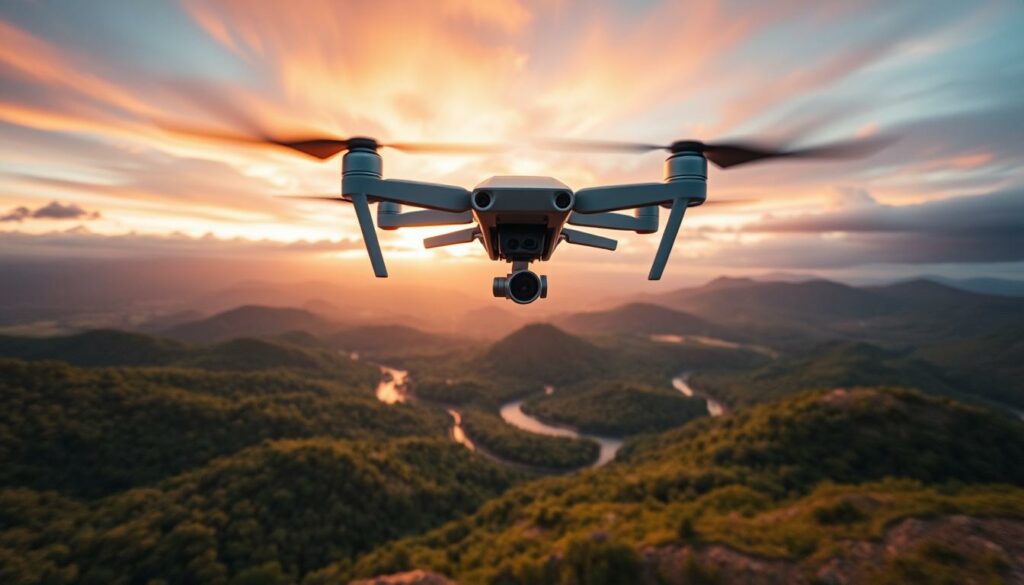
Free and Circle Modes Explained
The Free mode gives you complete manual control over your aircraft’s attitude and gimbal angle. While this offers maximum flexibility, I find it quite demanding for extended sessions.
In contrast, Circle mode creates beautiful orbital shots around a central subject. You can choose clockwise or counter-clockwise direction. I always select a larger subject area than initially planned for smoother tracking along the circular path.
Course Lock and Waypoints Modes Detailed
Course Lock is one of my favourite modes. Once you set the direction, your aircraft will maintain a perfect straight line regardless of its orientation. This allows your equipment to fly straight while you adjust camera angles.
Waypoints represents the most advanced option. You preset multiple points along your desired flight path, and the system automatically navigates between them. The speed settings typically range from 0.1 to 3 metres per second across all flight modes.
Each of these modes serves different creative purposes. Understanding when to use Free, Circle, Course Lock, or Waypoints will dramatically expand your capabilities for creating stunning time-compressed sequences.
drone hyperlapse tutorial: Mastering Flight Modes for Exceptional Results
What separates amateur footage from professional sequences often comes down to intelligent flight mode selection. Understanding each option’s purpose transforms your creative process.
My approach focuses on matching the mode to my vision. The goal is to choose a movement that enhances the story, not just activates a feature.
I find Course Lock ideal for urban scenes, letting me track a straight path while the camera focuses on the skyline. For landmarks, the Circle mode creates that classic cinematic orbit viewers love. Waypoints is my choice for complex shots, combining ascent with forward motion.
The story you want to tell should guide your flight mode choice. This ensures the movement supports your subject perfectly.
Mastery requires practice with each mode in different settings. The automated systems provide a smoothness manual flight can’t match. This dedication builds an intuitive sense for which approach will yield the best hyperlapse every time.
Drone Settings and Camera Configurations
Getting your camera configurations right before take-off makes all the difference between amateur and professional results. The choices you make in the settings menu directly impact your final sequence’s quality and consistency.
I always begin by setting three crucial parameters: the interval time, video duration, and maximum flight speed. The interval determines how often your equipment captures a frame, typically ranging from 2 to 15 seconds between shots.
Manual Settings for Consistent Results
Shorter intervals of 2-5 seconds create smoother motion, while longer gaps produce more dramatic, accelerated effects. Your chosen duration, adjustable from 2 to 30 seconds, dictates the final video length and total number of photos captured.
The maximum flight speed controls how quickly your aircraft moves during the shooting process. I recommend starting with slower speeds around 0.5-1 m/s for smoother results.
Make sure you configure everything in manual mode. If white balance or exposure is set to auto, they may change between frames, creating frustrating flicker in your final sequence.
Before pressing the shutter record button, double-check that RAW photo capture is enabled. This provides maximum editing flexibility later. When you tap the record button, your equipment will display the total shooting time and frame count.
I always make sure my battery has sufficient charge for the entire calculated duration, plus extra for the return flight. Changing settings mid-sequence will terminate your capture and waste precious power.
Capturing Sharp Photos and Cinematic Videos
When it comes to building your accelerated motion sequences, you face a critical choice in your capture methodology that significantly impacts the final quality. You can either record one long continuous video and speed it up later, or capture individual frames that you’ll assemble into a sequence.
The video approach seems quicker initially, but it creates enormous file sizes and doesn’t deliver the crisp results I prefer. You’re essentially recording 24 frames every second, only to discard most of them during editing.
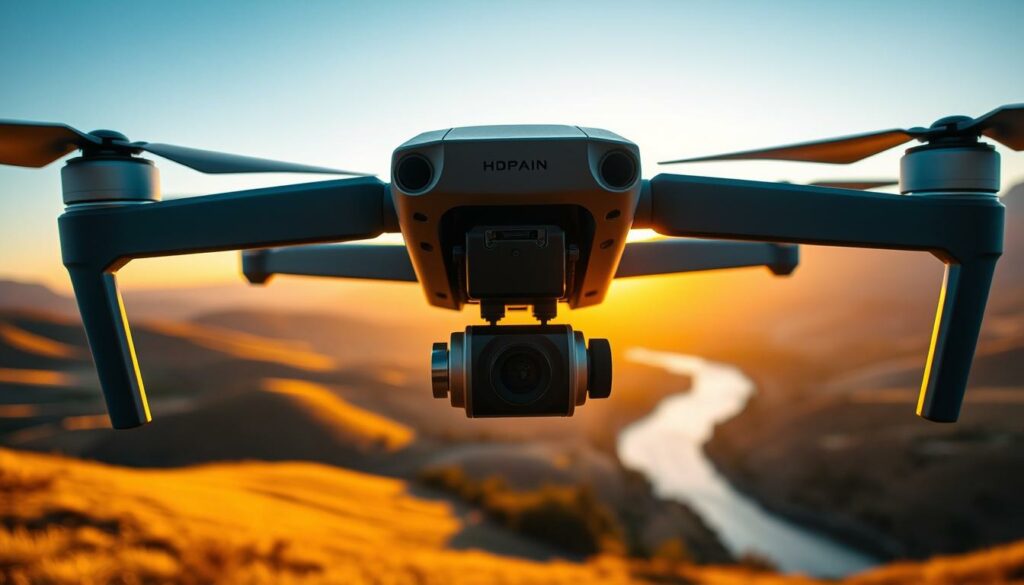
I strongly recommend using individual photos for your sequences. This method captures only the specific frames you’ll actually use, resulting in much more manageable file sizes. More importantly, it gives you complete creative control over each frame during post-production.
With this approach, you can edit every single photo in programmes like Lightroom. This allows for precise colour correction, exposure adjustments, and creative grading across your entire sequence. The difference in sharpness is particularly noticeable on larger screens.
Current DJI software does have one limitation worth noting. You can capture RAW format photos at 10-second intervals or longer, but faster intervals restrict you to JPEG only. Despite this, I still prefer the photo method even when shooting JPEGs.
The shooting process itself is straightforward once configured. Your equipment automatically captures photos at your specified interval throughout the flight. These individual photos become the building blocks of your final cinematic result.
While the photo-based approach requires more post-production work, the quality advantages make it absolutely worthwhile. Your final video will have that professional, sharp quality that truly stands out.
Intelligent Flight Modes for Advanced Control
For truly professional results, I never attempt to manually control my aircraft’s movement throughout an entire accelerated sequence. Maintaining perfect steadiness over extended periods is practically impossible, regardless of pilot skill level. That’s why I always utilise intelligent flight modes.
These automated systems handle the precise navigation while I focus on composition and framing. The consistency they provide elevates your work significantly above amateur attempts.
Utilising Tap Fly and Point of Interest Modes
Tap Fly mode is one of my favourite intelligent options for creating smooth, directional sequences. You simply tap your desired destination on the screen, and your equipment flies in a perfectly straight line towards that point.
This mode gives you complete control over speed and direction. I find it brilliant for cinematic approach shots towards a subject or sweeping departures that reveal landscapes progressively.
Point of Interest (POI) mode provides automated circular orbits around your chosen subject. The setup is straightforward: fly directly over your intended subject, select “set POI” in the flight modes panel, then specify the circle’s diameter.
This mode excels when your subject is a singular landmark or natural feature. It showcases your main subject from all angles with professional-level precision. Mastering both modes allows you to fly your equipment with consistency that transforms your results.
Best Practices for Seamless Hyperlapse Shooting
After years of trial and error, I’ve discovered that meticulous preparation is the secret ingredient to flawless aerial sequences. Getting the foundational elements right before you even take off makes all the difference.
My approach is built on a few key habits that dramatically improve reliability. These practises ensure I return with stunning footage, not frustration.
Optimising Interval and Duration Settings
The relationship between your interval and final smoothness is fundamental. A shorter time between shots, like 2-3 seconds, creates incredibly fluid motion.
Longer intervals of 10-15 seconds produce a more dramatic, accelerated feel. Your choice here directly shapes the energy of your final piece.
Patience in configuration pays off in the quality of the final sequence.
When planning your duration, remember that a 30-second video requires 720 photos. This takes considerable time to capture.
I always start with conservative settings. This helps me understand how the parameters interact before attempting more ambitious projects.
| Interval Setting | Visual Effect | Best For |
|---|---|---|
| 2-3 seconds | Buttery-smooth motion | Flowing traffic, calm water |
| 5-8 seconds | Balanced pace | General urban scenes |
| 10-15 seconds | Dramatic, fast movement | Fast-moving clouds, bustling crowds |
Make sure your equipment is fully charged before launch. These sessions consume significant power, especially at slower speeds.
I arrive with multiple batteries. It’s incredibly frustrating to have your aircraft return home mid-sequence.
Flying in an open environment is essential. Obstructions can interrupt your automated flight path or cause signal loss.
Even with automation, I constantly monitor the shooting process. I remain ready to intervene if conditions change unexpectedly.
The time invested in proper setup ensures your footage is usable and professional. It’s the best way to make sure your effort yields spectacular results.
Post-Production Editing Techniques for Hyperlapses
The magic truly happens during the editing phase, where individual frames transform into a flowing cinematic experience. This process turns your collection of stills into a mesmerising moving picture.
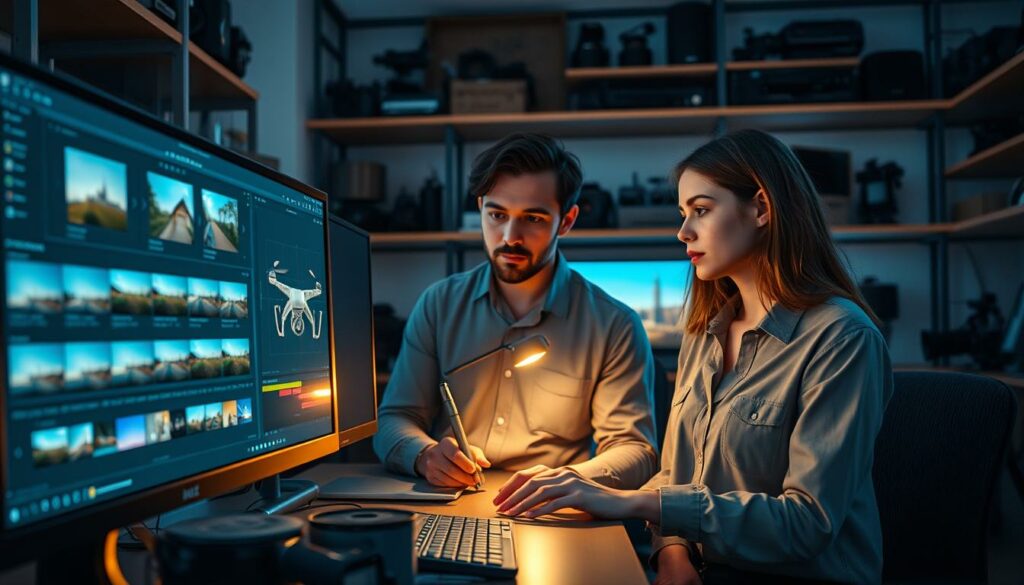
I find this stage absolutely crucial for achieving professional results. The right editing workflow makes all the difference in your final output.
Editing RAW Photos in Lightroom
My workflow begins by importing all the photos into Adobe Lightroom. I always start by carefully editing the first photo to establish my desired look.
Once satisfied, I copy the settings and test them on photos from the middle and end of the sequence. This ensures consistency across changing lighting conditions.
| Editing Approach | Best For | Time Required |
|---|---|---|
| Batch Sync All Photos | Consistent lighting conditions | 5-10 minutes |
| Gradual Adjustment | Changing light (sunrise/sunset) | 15-25 minutes |
| Manual Individual Edit | Complex lighting scenarios | 30+ minutes |
When I edit first photo properly, the entire sequence benefits. This systematic approach saves considerable time while ensuring quality.
Compiling an Image Sequence in Premiere Pro
After perfecting my photos in Lightroom, I move to Premiere Pro to create the final video. The import function has a special option for image sequences.
Selecting “Import as Sequence” automatically assembles all frames into a cohesive video clip. I can then fine-tune the playback speed to achieve the perfect pacing.
This complete process transforms raw captures into stunning visual stories. The effort invested in learning to properly edit photos pays off dramatically.
Stabilising Your Drone Footage for a Professional Finish
The last technical polish is what separates amateur-looking clips from broadcast-quality content. Even with the best equipment, wind and movement can introduce subtle shakes. I always use Adobe Premiere Pro’s Warp Stabilizer for this crucial final step.
Open your edited sequence and find the Effects panel. Search for “Warp Stabilizer” and drag it onto your clip. The software will analyse the motion, which takes a few minutes.
Once analysis is complete, play with the Smoothness slider. Find the right balance for your specific footage. Too much stabilisation can create weird warping effects.
The amount needed depends on your flight conditions and path. I carefully scrub through the entire video to check for any issues. This ensures a polished final result that maintains a natural feel.
This process elevates your work, giving it that smooth, professional quality viewers expect. It’s the final touch that makes all the difference.
Integrating Your Drone Hyperlapse Tutorial into YouTube Content
Once you’ve mastered the creation process, the next crucial step is seamlessly incorporating these visual marvels into your YouTube strategy. I’ve found these sequences work brilliantly as standalone content or as powerful B-roll within longer productions.
When exporting your finished piece, I recommend using the YouTube 1080p HD preset. Simply click File > Export > Media (or Command+M) to access the export dialogue. This automatically configures optimal settings while maintaining your high-quality picture.
Hyperlapses make exceptional opening sequences that grab attention immediately. They demonstrate your production capabilities within those crucial first seconds. I also use them as transitional elements between different sections of longer videos.
The time-compressed nature means they deliver significant visual impact quickly. This pacing aligns perfectly with what YouTube audiences expect. Consider how each sequence serves your overall narrative rather than existing as a pure technical showcase.
You can create dedicated compilation videos showcasing multiple locations or techniques. These tend to perform exceptionally well and demonstrate your range. By integrating these stunning visuals, you’ll differentiate yourself and build a reputation for quality aerial cinematography.
Troubleshooting and Optimising Drone Flight Operations
Maintaining consistent performance during extended aerial operations requires anticipating and preventing common technical problems. I’ve learned this through frustrating experiences that taught me valuable lessons about equipment reliability.
One particularly annoying issue occurs when your aircraft loses connection mid-flight. This immediately stops your sequence and triggers an automatic return home. The disconnection wastes a lot of battery power and ruins your carefully planned shot.
I always make sure to position myself with clear line-of-sight to maintain strong signal connection. Before every flight, I make sure both my equipment and controller are fully charged. Running out of power mid-session is incredibly frustrating.
The Task Library feature seems convenient for saving waypoint missions. However, it has a significant bug where altitude data isn’t preserved accurately. Your saved path might be 50 feet off, completely ruining your composition.
I never rely on the Task Library for waypoint missions. Instead, I complete the entire process within the same session where I set those waypoints. This ensures consistent altitude throughout the flight path.
When you need to fly drone on complex routes requiring extensive setup, plan for sufficient battery to both configure and execute the mission. Test flights help identify potential issues with signal interference or obstacles before your main shoot.
Troubleshooting becomes easier with experience as you develop intuition for potential problems. I always bring multiple batteries and memory cards to maximise success chances during drone flying sessions.
Conclusion
You now possess all the essential tools to begin your creative journey. Mastering this technique requires a lot of dedicated practise, but the final result is genuinely worth the investment.
Remember that every project teaches you something new. Start with simple sequences before attempting complex missions. Your initial efforts might seem challenging, but your workflow will become more intuitive with time.
I’m excited to see what you create with your aerial equipment. Please share your stunning hyperlapse sequences and continue learning. The community thrives on collaboration.
With these insights, you can produce captivating visual stories that truly distinguish your content. Your unique perspective will shine through in every hyperlapse you craft.
FAQ
What is the main difference between a hyperlapse and a standard timelapse?
The key difference is movement. A standard timelapse involves the camera staying in one fixed location while the world moves around it. A hyperlapse, however, involves the camera itself moving over a significant distance, creating a dynamic, flowing perspective that is impossible to achieve statically.
Which DJI models are best suited for creating hyperlapses?
I find that many of the recent DJI models are excellent. The DJI Mavic Pro series and the DJI Mini Pro (like the Mini 3 Pro and Mini 4 Pro) are fantastic choices because they have dedicated hyperlapse flight modes built right into their software, which makes the whole process much smoother for beginners and pros alike.
How do I plan a safe and effective flight path for my shoot?
I always start by scouting the location thoroughly, either in person or using maps. I look for a clear, straight line or a smooth curve without obstacles. Using modes like Course Lock or Waypoints helps you pre-plan the route, ensuring the aircraft flies a consistent path, which is crucial for a stable final video.
What are the different hyperlapse flight modes, and when should I use them?
The main modes are Free, Circle, Course Lock, and Waypoint. I use Free Mode when I want to manually control the direction. Circle Mode is perfect for orbiting a subject. Course Lock keeps the camera fixed on one bearing, great for straight lines, and Waypoints lets you programme a precise, complex route beforehand.
What camera settings should I use to ensure my photos are consistent?
I strongly recommend using manual settings. Lock in your ISO, shutter speed, and aperture manually to prevent the camera from adjusting automatically between each shot. This avoids flickering in your final sequence. Shooting in RAW format also gives you much more flexibility when you edit the first photo and apply those changes to the rest.
How long should the interval be between each photo?
The interval depends on the speed of the movement you’re capturing. For fast-moving clouds or traffic, a shorter interval of 2-3 seconds works well. For a slower, more graceful movement like a sunset, I might use a 5-7 second interval. It’s a balance between capturing smooth motion and the total duration of your flight.
What is the best way to stabilise my footage in post-production?
Most editing software, like Adobe Premiere Pro or DaVinci Resolve, has excellent stabilisation tools. I import the image sequence and apply a stabilisation effect, often using the ‘Warp Stabiliser’ in Premiere. The key is to shoot with stability in mind first—a smooth flight path makes the editor’s job much easier.
Can I create a hyperlapse without using the dedicated drone modes?
Absolutely! Before these intelligent modes existed, I would manually fly the drone in a straight line or a circle, manually pressing the shutter record button at regular intervals. It requires a very steady hand and a lot of practice, but it’s still a viable method if your aircraft doesn’t have automated features.